Reporting a message and what happens next
Deleting a phishing message protects you. Reporting it protects everyone else. Here is how, and what happens after you tap the button.
Why report instead of delete
When one person at a company gets a phishing message, usually several do. If you delete yours, your coworkers still have theirs. When you report it:
- your mail provider learns the pattern and blocks similar messages for everyone,
- your IT contact can find and remove the same message from other inboxes,
- the sending domain and the link can be blocked before anyone clicks.
Reporting takes about five seconds. It is the single most useful thing a non-technical employee can do for security.
CISA’s one-minute reminder covers exactly this: recognize it, report it, then delete it.
Report, spam or block?
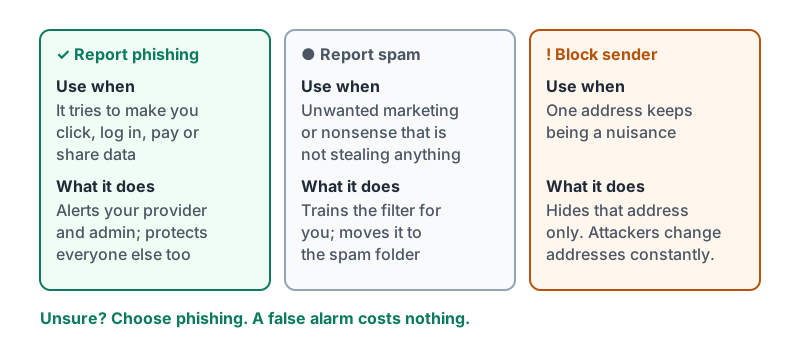
| Button | Use it when | What it does |
|---|---|---|
| Report phishing | The message tries to trick you into clicking, logging in, paying or sharing data | Sends the message to your provider’s security team and your admin, removes it from your inbox |
| Report spam (or Junk) | Unwanted marketing or nonsense that is not trying to steal anything | Trains the filter for you, moves the message to spam |
| Block sender | A persistent nuisance from one address | Only hides future messages from that exact address; attackers change addresses constantly, so this does little against phishing |
If you are unsure whether something is phishing or spam, choose phishing. A false alarm costs nothing.
The three buttons side by side, and what each one actually does.
Telling a person
For anything involving money, your boss’s name, or a message that looks aimed at your company specifically, also tell your manager or IT contact directly. Two rules:
- Do not forward the message to coworkers as a warning. Forwarding spreads the live link. Tell them in person or in chat instead, and let IT send any warning.
- If IT asks for the message, use Forward as attachment (or the report button, which sends everything they need). A plain forward strips the header details that show where it really came from.
If you already clicked
This happens to careful people. What matters is the next fifteen minutes, not the mistake.
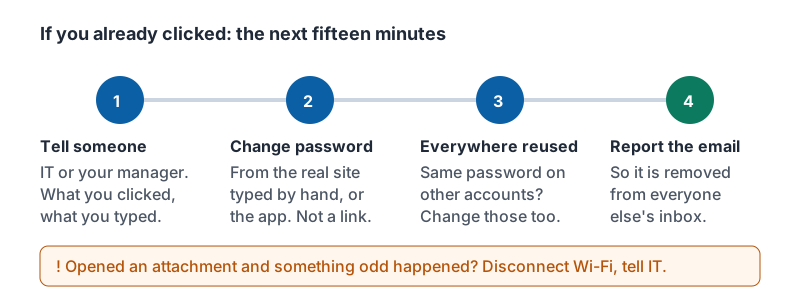
- Tell IT or your manager right away, including exactly what you clicked and what you typed. Speed is everything; passwords can be reset in minutes if someone knows.
- Change the password on that account, from a different, known-good place: the real website typed in by hand, or the app on your phone. Not from any link.
- Change the same password anywhere else you reused it. Then stop reusing passwords (a password manager fixes this permanently).
- Report the original email with the Report phishing button so it is removed for others.
If you opened an attachment and something strange happened (a blank document asking you to “enable content”, a window flashing open and closed, the laptop slowing down), disconnect from Wi-Fi and tell IT. Do not keep working on it.
The four steps in order, for the fridge door or the back of your badge.
What happens next
Once you report, roughly this sequence runs in the background:
- The provider’s systems analyze the message, the link and any attachment.
- Your admin or IT contact sees the report. They can pull the same message from every inbox at the company and block the sender and the link.
- If you typed a password, your account gets a forced reset and any unknown sign-ins are kicked out.
- If a vendor’s mailbox was compromised, someone calls the vendor so they can fix it.
- You may get a short note back saying it was handled, or asking for one more detail.
Nobody keeps a list of who reported false alarms. Companies that punish reporting end up with employees who hide clicks, and that is how small incidents become big ones.
Try it now
Open your mail app on your phone and find the Report phishing option without tapping it. Then write down (or save in your notes app) who you would tell if you clicked something: a name and a phone number. That is your incident plan.
Remember: report, don’t just delete. If you clicked, tell someone within minutes and change the password from a place you reached by yourself. Nobody is ever blamed for reporting.
Checking your progress…