Templates
Recurring documents should start from a clean master that nobody edits by accident.
What a template is for
If your team writes the same kind of document more than twice a month (quotes, meeting notes, incident reports, client letters), a template saves time and stops drift. Everyone starts from the same headings, the same styles, the same footer with the right phone number.
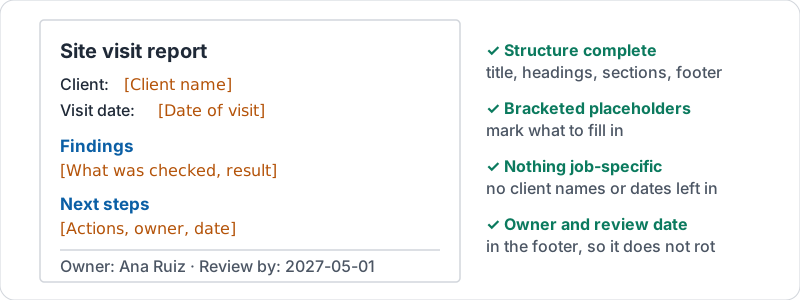
A template is just a Google Doc with three qualities:
- The structure is complete: title, headings, standard sections, footer.
- Placeholder text marks what to fill in, in square brackets: [Client name], [Date of visit].
- Nothing specific to one job is left in it.
A template with those three qualities.
Making one
Start from the best recent example of that document. Make a copy. Strip out anything about that particular client or date and replace it with bracketed placeholders. Check the styles (lesson 1) so headings are real headings. Name it clearly: “TEMPLATE - Site visit report”.
Then decide where it lives. Two good options:
| Where | Best for |
|---|---|
| Your organization’s template gallery | Company-wide documents everyone should find without asking |
| A “Templates” folder in a shared drive | Team templates; quick to set up, easy to update |
Avoid keeping templates in someone’s My Drive. When that person leaves, the template goes with them.
A quick demonstration of creating and reusing a template.
Using one without wrecking it
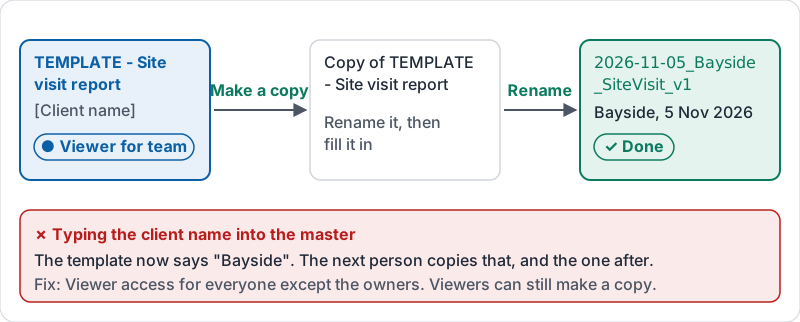
The commonest template mistake is opening the master and typing the client’s name into it. Now the template has a client’s name in it and the next person copies that.
Always make a copy first, rename the copy, then fill it in. If your team keeps doing this by accident, set the template to Viewer access for everyone except one or two owners. Viewers can still make a copy; they just cannot damage the master.
The workflow, and the mistake it prevents.
Keeping it current
Templates rot. Phone numbers change, a section becomes irrelevant, a legal line gets added. Give each template an owner and a review date in its footer or a comment. When it changes, name a version (lesson 6) so you can see what the template looked like when an old document was created.
Try it now
Pick one document type your team writes often. Take the best recent example, make a copy, replace specifics with [bracketed placeholders], and save it in a shared drive folder called Templates with Viewer access for the team. Make a copy from it to confirm the workflow.
Remember: copy the template, never edit it. If people keep editing it, lock it to Viewer.
Checking your progress…