Version history, name it and restore it
Every change is saved automatically. Name the versions that matter so you can get back to them in seconds.
There is no Save button, and that is fine
Docs saves every keystroke. Behind the document sits a timeline of versions: who changed what, and when. That means two things:
- You never lose work because you forgot to save.
- You can always go back to how the document looked at any point, even after someone else “fixed” it.
Version history is the safety net under comments and suggestions. If a colleague accepts the wrong suggestions or pastes over a section, you do not argue; you restore.
Name the versions that matter
Automatic versions are labelled only by date and time. Scrolling through “Nov 5, 2:14 PM” entries looking for the one that was sent to the client is slow. Name a version at each milestone:
| Moment | Version name |
|---|---|
| Before sending to a client or manager | “Sent to Bayside 2026-11-05” |
| Right before a big rewrite | “Before pricing rewrite” |
| After a decision meeting | “Approved at Nov board meeting” |
Naming takes five seconds and turns the history into a list of checkpoints anyone on the team can read.
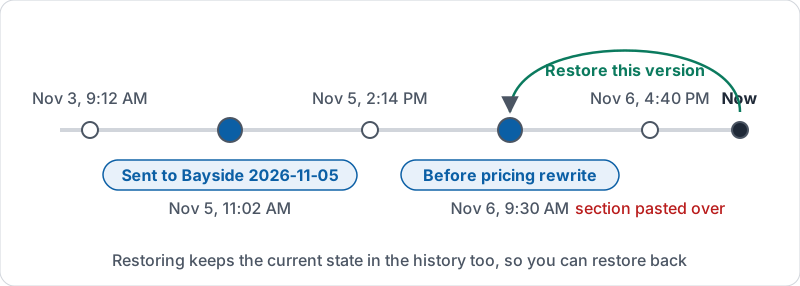
The history as a timeline, with two named checkpoints.
Restoring an earlier version
Restoring does not destroy anything. The current state is kept in the history too, so you can restore, look, and restore back if you were wrong. The steps are always the same:
- Open version history.
- Pick the version by its name or time; the document shows how it looked then, with changes highlighted.
- Check it is the one you want. Look at who made the changes and when.
- Restore it. The document now matches that version.
- Tell the people working in the document what you did and why, so nobody repeats the lost edits blind.
If you only need a paragraph from an old version, you can copy it from the preview instead of restoring the whole document. You can also make a copy of any version as a new document.
Version history versus “Make a copy”
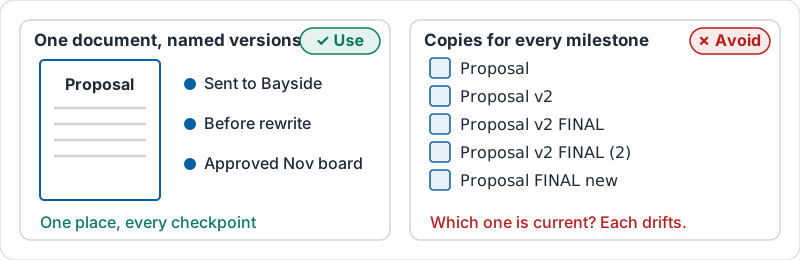
“Make a copy” creates a second document that drifts from the first. Use it for a genuinely new document (a new client’s proposal from last year’s). Use version history, not copies, for checkpoints of the same document. Folders full of “Proposal v2 FINAL (2)” are what version history exists to prevent.
One document with named versions, or a folder of copies.
Try it now
Open a document you own and name its current version “Before training exercise”. Change a paragraph, then open version history and restore the named version. Confirm the paragraph is back, then look at the history to see that your change is still recorded.
Remember: nothing in a Google Doc is truly lost. Name the versions that matter and you can get back to any of them in under a minute.
Checking your progress…