Gmail that saves you time
Five Gmail features do most of the work: search operators, labels and filters, snooze, schedule send, and undo send. Learn when each one fits.
Stop scrolling, start searching
Gmail’s search is faster than any folder system, once you know a few words to add:
| You want | Type in the search box |
|---|---|
| Everything from one person | from:renee@gulfcoastsupply.com |
| Messages with attachments | has:attachment |
| A PDF from last month | has:attachment filename:pdf after:2026/10/01 |
| Something you sent | to:maria in:sent |
| A subject word | subject:invoice |
| Unread, older than a week | is:unread older_than:7d |
| Big messages filling your storage | larger:10M |
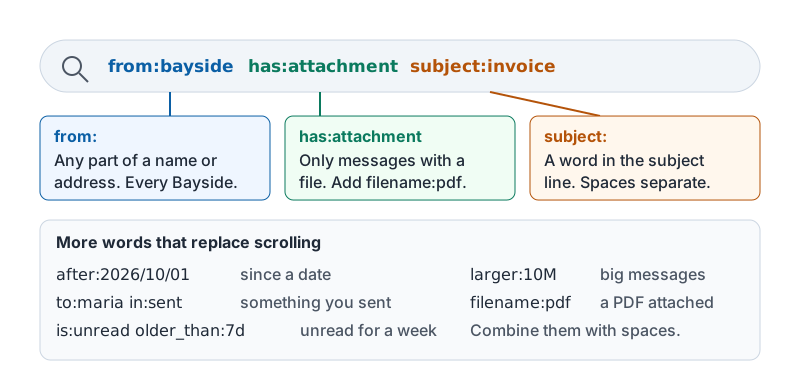
Combine them: from:bayside has:attachment subject:invoice finds every Bayside invoice in one line. On a phone, the search box accepts the same words.
That combined search, taken apart.
Labels and filters
A label is a tag. Unlike a folder, one message can carry several labels, and labels can be nested (Vendors / Bayside). A filter is a rule that applies labels automatically: “every message from @baysideprinting.com gets the Vendors/Bayside label and skips the inbox.”
Good uses for filters in a small business:
- Receipts and order confirmations go straight to a Receipts label, out of the inbox.
- Messages from your point-of-sale or booking system get a label and stay unread until you check them in one batch.
- Anything from your accountant gets starred.
Keep it small. Three to six labels that you actually use beats thirty you ignore.
Snooze
Snooze makes a message leave your inbox and return at a time you pick: tomorrow morning, Monday, or a date. It is for messages that need a reply later and would otherwise sit there nagging you. Snooze the vendor quote until the day you meet about it; snooze the “any update?” until you will have one.
Rule of thumb: if you have snoozed the same message three times, it needs a decision, not another snooze.
Schedule send
Write the message now; Gmail sends it when you choose. Use it to:
- send a reminder at 8 am Monday without working on Sunday night,
- land a quote in a customer’s inbox during their business hours,
- queue a follow-up for three days from now so you do not forget.
Scheduled messages wait in a Scheduled folder and can be edited or canceled until they go out.
Undo send
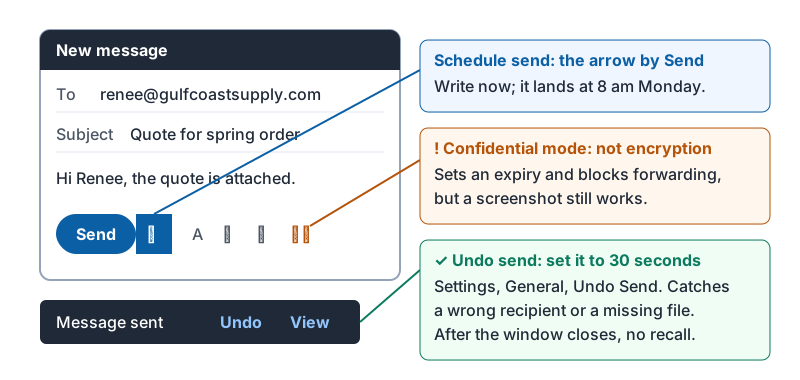
After you press Send, Gmail shows “Message sent” with an Undo option for a few seconds. Set that window to the maximum (30 seconds) in Settings. It will save you from a wrong recipient or a missing attachment more often than you expect. After the window closes, the message is gone; there is no recall.
Confidential mode and what it is not
Confidential mode sets an expiry date on a message and stops the recipient from forwarding, copying or downloading it inside Gmail. It is useful for a one-time piece of information. It is not encryption and does not stop a screenshot. For sensitive files, share a Drive file with the right access instead (lesson 5), which you can revoke later.
Where schedule send, confidential mode and undo send live in the compose window.
Mistakes worth avoiding
| Habit | Problem | Instead |
|---|---|---|
| Using the inbox as a to-do list | Hundreds of unread items, important ones buried | Snooze, star, or move the task to Tasks or Calendar |
| Reply All on a company-wide message | Everyone’s inbox fills with “Thanks!” | Reply only to the sender |
| Attaching large files | Bounces and full inboxes | Share a Drive link (Gmail offers this automatically for big files) |
| Forwarding chains with customer data | Data goes where you cannot see it | Share the specific file with the specific person |
Try it now
Set Undo Send to 30 seconds. Then type one search that finds all messages from your most frequent vendor that have an attachment. Snooze one message that you genuinely cannot act on until next week.
Remember: search instead of scroll, a few labels with filters, snooze what is for later, schedule what is for business hours, and give yourself 30 seconds to undo.
Checking your progress…