Your Google account and 2-Step Verification
Your work Google account is the key to everything else. Lock it with a second step, set recovery options, and learn to tell a real Google prompt from a fake one.
One account, everything behind it
Your work Google account opens Gmail, Drive, Calendar, Chat, Meet and, through “Sign in with Google”, many other tools your business uses. If someone gets into it, they can read your mail, download your files, and send messages as you to customers and coworkers. Protecting this one account is worth ten minutes.
Three things make it safe: a second step at sign-in, recovery options that are up to date, and the habit of signing in only on pages you reached yourself.
Work account or personal account?
Many people have both. Keep them separate:
| Use the work account for | Use a personal account for |
|---|---|
| Anything about customers, suppliers, staff or money | Personal mail, shopping, family photos |
| Files the business must keep when you leave | Things that are yours |
| Calendar invites and meetings with the team | Personal appointments (you can show them as busy on your work calendar) |
If the business owns the account, the owner or admin can reset it, recover files from it and close it when someone leaves. That is a feature, not a threat.
2-Step Verification
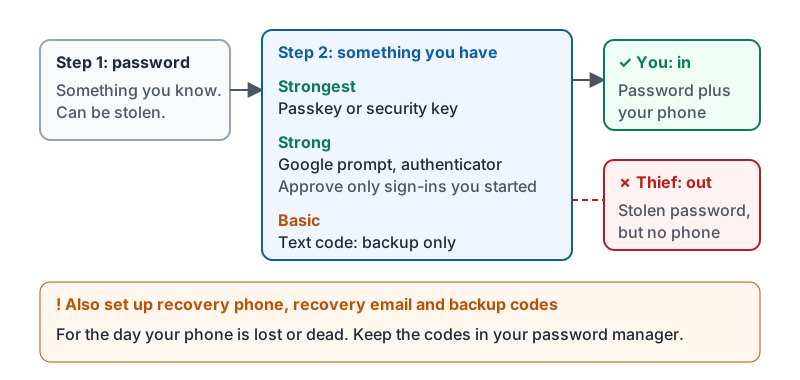
With 2-Step Verification (2SV) on, a stolen password is not enough; the thief also needs your phone or a passkey. Google offers several second steps. Pick the strongest one your phone supports:
| Second step | Strength | Notes |
|---|---|---|
| Passkey | Strongest | Uses your phone or computer’s fingerprint, face or PIN. Cannot be used on a fake site. |
| Security key | Strongest | A small USB or NFC device. Good for shared front-desk computers. |
| Google prompt | Strong | A “Is this you?” notification on your phone. Only approve sign-ins you just started. |
| Authenticator app | Strong | Six-digit codes from an app. Works without signal. |
| Text message code | Basic | Better than nothing; can be intercepted. Use as a backup, not the main method. |
Also save your backup codes somewhere safe (your password manager is a good place) for the day your phone is lost or dead.
Why a stolen password alone no longer opens the account.
Recovery options
Set a recovery phone and a recovery email (a personal address is fine). Google uses them to confirm it is you if you are locked out, and to warn you about suspicious sign-ins. Check them once a year or whenever you change phone numbers.
Google’s own forty-second explainer of what 2-Step Verification adds.
Real prompt or fake?
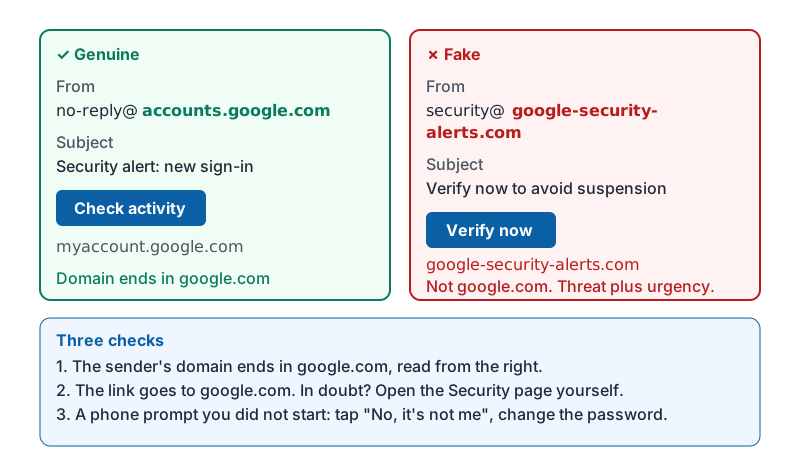
Attackers imitate Google constantly: “Security alert: new sign-in from Windows”, “Your storage is full”, “Verify your account to avoid suspension.” Use three checks:
- The sender’s domain. Real Google account mail comes from
accounts.google.comor anothergoogle.comaddress. Read the domain from the right:google-security-alerts.comandworkspace-google.comare not Google. - The link’s destination. Press and hold or hover. Real links go to
google.comormyaccount.google.com. If in doubt, do not use the link: open your account’s Security page yourself. - The prompt on your phone. A Google prompt appears only when someone has just entered your password. If you did not just sign in, tap No, it’s not me. That tells you your password has leaked; change it.
A sign-in approval you did not start is never a glitch. It is someone with your password trying to get in.
A genuine alert and a fake one, side by side.
Try it now
Open your Google Account’s Security page. If 2-Step Verification is off, turn it on and add a passkey or Google prompt. Then check your recovery phone and email are correct. Finally, look at “Your devices” and sign out anything you do not recognize.
Remember: second step on, recovery options current, and never approve a prompt you did not start. Real Google mail and links end in google.com, read from the right.
Checking your progress…