The inbox lab
A walkthrough of the ten-message inspection lab. Learn the routine, see every verdict explained, then take the lab yourself.
What the lab is
The assessment for this course drops you into a simulated inbox with ten messages. Some are genuine, some are phishing, and a few are genuine-but-risky. For each one you tap the detail that gives it away, or you decide what to do: act on it, verify through a second channel, or report it.
This lesson walks through a practice set that mirrors the lab. The real lab uses different senders and amounts, so learn the routine rather than the answers.
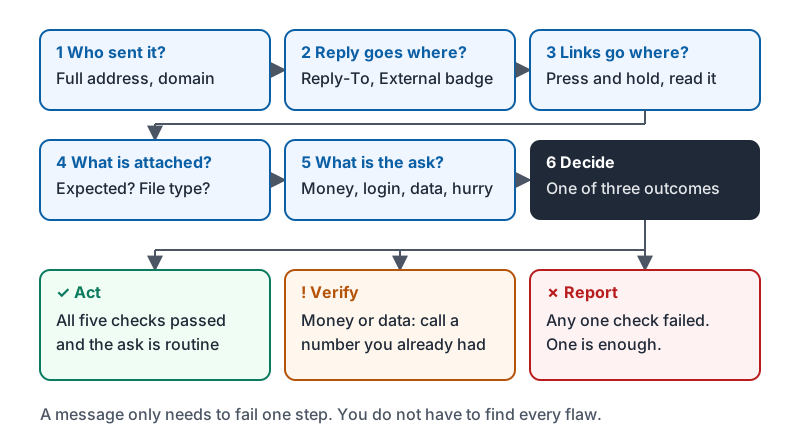
The six-step inspection routine
Run this on every message, in order. It takes under thirty seconds once it is a habit.
| Step | Question | Lesson |
|---|---|---|
| 1 | Who sent it? Tap the name, read the full address, read the domain from the right. | 1, 2 |
| 2 | Where would a reply go? Check Reply-To. Is there an External badge? | 2 |
| 3 | Where do the links go? Press and hold, read the destination domain. | 3 |
| 4 | What is attached? Was I expecting it? What file type? | 3 |
| 5 | What is the ask? Money, password, data, secrecy, urgency, a channel switch? | 4 |
| 6 | Decide: act, verify through a known channel, or report. | 4, 5 |
A message only needs to fail one step to be reported. You do not have to find every flaw.
The routine as a flowchart, ending in the three verdicts the lab asks for.
The practice set, message by message
| # | From | The ask | Verdict | The strongest reason |
|---|---|---|---|---|
| 1 | jordan@yourcompany.com |
“Q3 budget shared with you”, link to drive.google.com |
Act | Known coworker, real domain, link to the genuine Drive domain, routine request |
| 2 | it-support@yourcompany.com |
“Password expires today”, reset at yourcompany-reset.com |
Report | The link’s domain is a hyphenated look-alike. Your IT team’s reset page is on your own domain. Go there yourself if you are unsure. |
| 3 | tracking@ups-delivery-alerts.com |
“Delivery attempt failed, confirm address” | Report | The domain is not ups.com. The brand is just a word in a longer domain. |
| 4 | ceo@yourcompany-exec.com |
“Wire $9,800 before 3pm, boarding a flight, can’t talk” | Report | Look-alike domain plus urgency, secrecy and a wire. Three red flags stacked. |
| 5 | noreply@docusign-notify.net |
“Completed: Please DocuSign” | Report | DocuSign’s real notifications come from docusign.net or docusign.com. You were not expecting a contract. |
| 6 | billing@baysideprinting.com |
Invoice for the expected monthly amount, PDF attached, same bank details as always | Act | Known vendor, expected amount, nothing has changed. Still open the PDF with preview. |
| 7 | accounts@gulfcoastsupply.com |
“Updated remittance information, details attached” | Verify | The address is the vendor’s real domain, so this could be a compromised mailbox. Any bank change gets a phone call to the number on file before you touch anything. Then report it either way. |
| 8 | no-reply@zoom.us |
“Missed meeting recording”, link to zoom-recordings.xyz |
Report | Genuine-looking sender, but the link’s domain is not zoom.us. Sender address is not enough; the destination is the tell. |
| 9 | maria.owner@gmail.com |
“Quick favor: 5 x $100 Apple gift cards, send me the codes” | Report | Your owner writing from a personal webmail address, asking for gift card codes. This is never a legitimate business request, no matter who asks. |
| 10 | hr@yourcompany.com |
“Benefits enrollment opens Monday”, link to the benefits portal you already use | Act | Internal domain, expected annual message, link to the known portal. Checking the link takes three seconds and confirms it. |
Patterns worth noticing
- Three of the ten (1, 6, 10) are genuine. The lab rewards people who check and then act, not people who report everything. Reporting a routine coworker message is a wrong answer too.
- Two messages (2 and 8) have a genuine-looking sender and a bad link. Step 1 alone would have passed them. That is why the routine has six steps.
- One message (7) is “verify”, not “report”. It may be genuine. The right move is a phone call, then a report regardless so IT can check the vendor’s mailbox.
- Message 9 is the gift-card scam. In the lab you may also see it as a text message. The answer is the same: never buy gift cards on a message request, and report it.
How the lab scores you
Each message asks you either to tap the detail that proves the problem (the from address, the Reply-To, the link, the attachment, the body) or to sort the message into act, verify or report. Some questions then ask you to write one or two sentences naming the strongest reason. Name the specific thing: “the link goes to zoom-recordings.xyz, not zoom.us” scores; “it looks fishy” does not.
Pass is 80 percent. Distinction is 95 percent. Retakes use fresh messages, so if you miss, revisit the lesson for the step you missed and try again.
Common mistakes
| Mistake | Fix |
|---|---|
| Tapping the subject line because it sounds urgent | Urgency is a hint, not proof. Tap the address or link that is actually wrong. |
| Reporting message 7 without verifying | Vendor bank changes get a phone call first. Reporting alone leaves the real invoice unpaid and the vendor unaware. |
| Trusting message 8 because zoom.us is real | Always run step 3. The sender can be real and the link can still be a trap. |
| Writing “suspicious” with no reason | Name the domain, the link or the request. Specific beats vague. |
Try it now
Take the lab. Before each message, say the six steps in your head: who, reply-to, links, attachment, the ask, decide. When you are done, look at any you missed and find the step you skipped.
Remember: who sent it, where replies go, where links go, what is attached, what they want, then decide. One failed step is enough to report. Three seconds of checking beats three weeks of cleanup.
Checking your progress…