Personal versus Workspace accounts, and what happens to your data
The same prompt is treated very differently on a personal Gmail account and on your company's Workspace account. Here is the difference and why it matters.
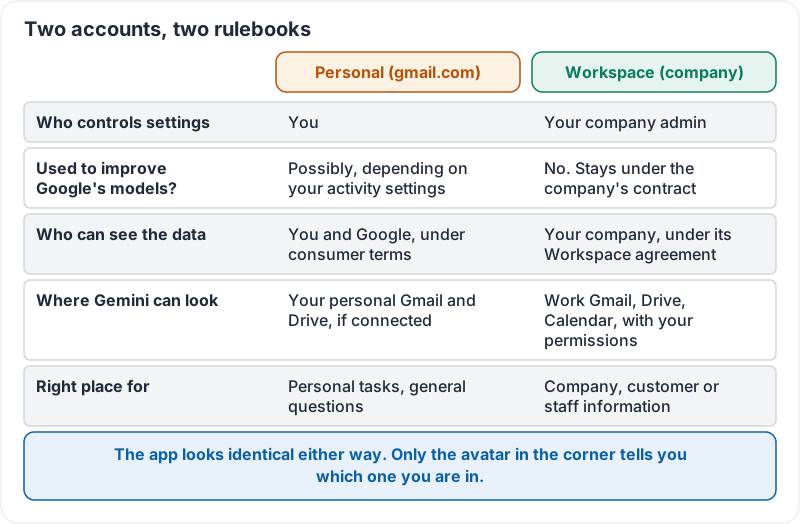
Two accounts, two rulebooks
Most people have two Google accounts: a personal one ending in gmail.com, and a work one on the company’s domain. Gemini is available in both. The rules are not the same.
| Personal Google account | Workspace account (company domain) | |
|---|---|---|
| Who controls settings | You | Your company admin |
| Can chats be reviewed or used to improve Google’s models? | Possibly, depending on your activity settings | No. Workspace content and prompts are not used to train models and stay under the company’s contract |
| Who can see the data | You and Google under consumer terms | Your company, under its Workspace agreement |
| Where Gemini can look | Your personal Gmail and Drive, if you connect them | Your work Gmail, Drive, Calendar, with your work permissions |
| Right place for… | Personal tasks, general questions | Anything involving company, customer or staff information |
The common mistake is the easy one: being signed in to the wrong account in the Gemini app. The app looks identical either way. Only the avatar in the corner tells you.
The two rulebooks side by side:
The activity setting on personal accounts
On a personal account, Gemini has an activity setting that controls how long your chats are kept and whether they may be reviewed by people or used to improve the service. You can switch it off or shorten the retention period. On a Workspace account these choices are made by your admin and Workspace data is kept under the company’s agreement.
Knowing the state of that setting is the first thing to check before a personal account touches anything work-adjacent, and most company policies say simply: do not.
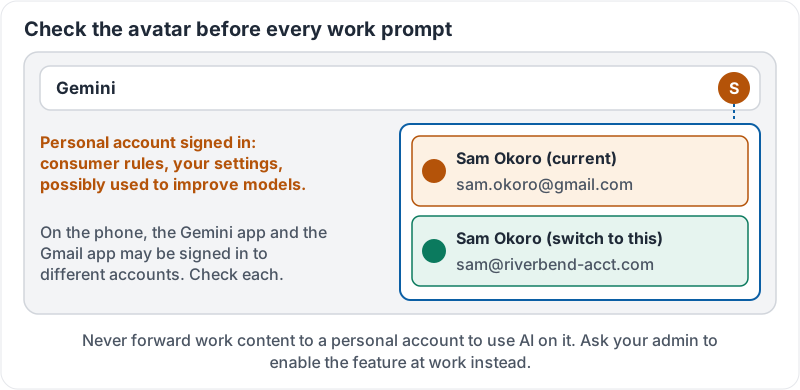
The avatar check, as it looks when the wrong account is signed in:
Why this matters for the side panel
Gemini in Gmail or Drive on your Workspace account can only pull from your work data, which is what you want. Gemini in the app on your personal account, if connected to your personal Drive and Gmail, can pull from those. Mixing the two, for example by forwarding a work document to personal Gmail and then asking personal Gemini about it, moves company data outside company control. That is a policy breach in most businesses even when nothing goes wrong.
Three habits
- Check the avatar before every work prompt in the Gemini app.
- Use the side panel in your Workspace apps for work content; it cannot be in the wrong account because it is inside the work app.
- Never forward work content to a personal account to use AI on it. Ask your admin to enable the feature at work instead.
Try it now
Open the Gemini app on your phone and check which account it is signed in to. Then open Gmail and check which account that is. If they differ, practise switching the Gemini app to your Workspace account, or decide to use only the side panel for work.
Remember: personal account, consumer rules, your settings. Workspace account, company rules, admin settings, no model training. The avatar in the corner is the only thing that tells you which one you are in.
Checking your progress…