Gemini in Workspace
Gemini can draft, summarize and find things inside Gmail, Docs, Sheets, Drive and Meet. Learn what it is good at, how to check its work, and which data must never go into a prompt.
What Gemini is in Workspace
Gemini is Google’s AI assistant built into the Workspace apps. Depending on your organization’s plan, it appears as a side panel in Gmail, Docs, Sheets, Drive, Chat and Meet, as “Help me write” buttons, and as the Gemini app on the web and phones. Availability and features depend on the plan your business has and the settings your admin chooses.
It is a strong assistant and a poor authority. It is good at producing a first draft from your notes, turning a long thread into five bullet points, and finding a file when you half-remember its name. It can also state something false in a confident tone, invent a number, or misread who said what in a thread.
Where it saves real time
| Task | How to ask | What to check afterward |
|---|---|---|
| Summarize a long email thread | Open the thread, choose summarize | That the summary did not miss the one message that changed the decision |
| Draft a reply | “Draft a polite reply saying we can deliver Thursday, not Tuesday, and offer a 10% discount on shipping” | Tone, facts, and that it did not promise anything you did not say |
| Turn notes into a doc | Paste meeting notes, ask for an agenda or summary | Names, dates, decisions. Delete anything it added that nobody said. |
| Find a file in Drive | “Find the Bayside contract from last spring” | That it opened the current version, not an old copy |
| Explain a formula or build a table in Sheets | “Create a table to track vendor invoices with due dates and status” | Formulas on a few rows by hand before trusting the totals |
| Meeting notes in Meet | Turn on Take notes for me (if your plan has it) | Attribution of who said what, and action items |
The pattern: Gemini gets you from zero to a draft fast. You get it from draft to done.
Google Workspace’s own lesson walks through Help me write, thread summaries and custom Gems in Gmail.
The three checks before you send anything it wrote
- Facts and numbers. Every date, price, quantity and name. Gemini does not know your actual delivery schedule; it knows what a plausible one looks like.
- Promises. Did the draft commit you to a refund, a deadline or a discount you did not intend? Delete it.
- Tone and audience. A customer who is angry needs a different draft than a vendor who is late. Read it as the recipient would.
If you would not sign your name under it, it is not finished.
From your notes to a message you would sign, and the data that never goes in.
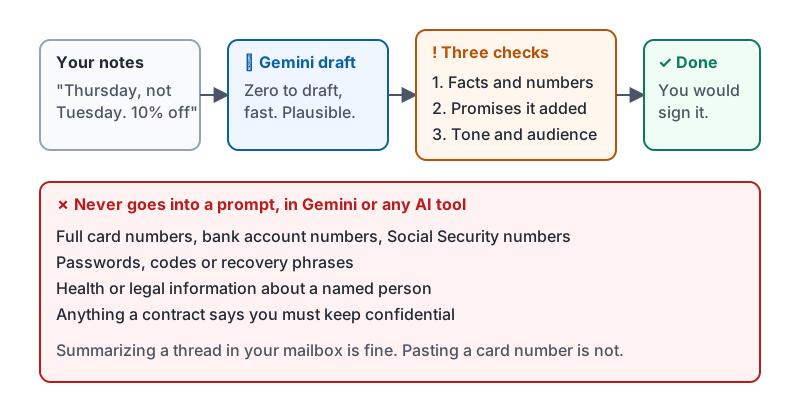
Data that never goes into a prompt
Gemini in Workspace is covered by your organization’s Workspace terms, which is different from using a consumer chatbot. Even so, some data should not be pasted into any AI tool, including Gemini, unless your owner has explicitly said so:
| Do not paste | Why |
|---|---|
| Full card numbers, bank account numbers, Social Security numbers | Regulated data. There is no business reason an AI assistant needs it. |
| Passwords, codes or recovery phrases | Never, anywhere |
| Health or legal information about a named person | Privacy obligations |
| Anything a contract says you must keep confidential | The contract does not have an AI exception |
Summarizing a thread that is already in your mailbox is fine. Copying a customer’s card number out of a form so Gemini can fill in a template is not.
What Gemini is not
- Not a legal, tax or medical opinion. A summary of a contract is a reading aid, not advice.
- Not a source. If Gemini quotes a figure, find where it came from before repeating it.
- Not a decision-maker. It can list options; the person accountable chooses.
- Not private from your admin. Your organization’s logs and policies apply, as with every Workspace app.
When Gemini helps with security
Ask it to summarize a suspicious message and it will often point out urgency and odd links; that is useful. But it can also be fooled by a well-written phishing message, exactly like a person. Your routine from the email courses still applies: sender domain, link destination, the request itself.
Try it now
Open a long email thread and ask Gemini to summarize it. Then read the thread yourself and find one thing the summary left out or got slightly wrong. That gap is the reason you check every time.
Remember: Gemini writes the first draft; you own the final one. Check facts, promises and tone. Keep card numbers, passwords and confidential data out of every prompt.
Checking your progress…