Gemini in Sheets
Gemini can draft a formula, build a table or summarise a sheet in seconds. Treat the result as a draft from a fast new colleague, and check it.
What it is good at
Gemini in Sheets sits in a side panel and reads the sheet you have open. Useful asks:
| Ask | Good for |
|---|---|
| “Write a formula that totals column C where column B is South” | A correct SUMIF when you cannot remember the order of the inputs |
| “Summarise this sheet” | A plain-language first read of a table you did not build |
| “Which region had the biggest drop from Q1 to Q2?” | Quick answers to questions you could also get from a pivot |
| “Create a table to track vendor invoices with due dates and status” | A starter layout with sensible columns and validation |
| “Explain what this formula does” | Decoding a formula a former colleague left behind |
It works best on a clean table (lesson 1), with a header row and one kind of value per column. On a messy sheet it guesses, and guesses confidently.
Google’s two-minute example of asking Gemini to analyse and summarise a sheet.
Always check before you rely on it
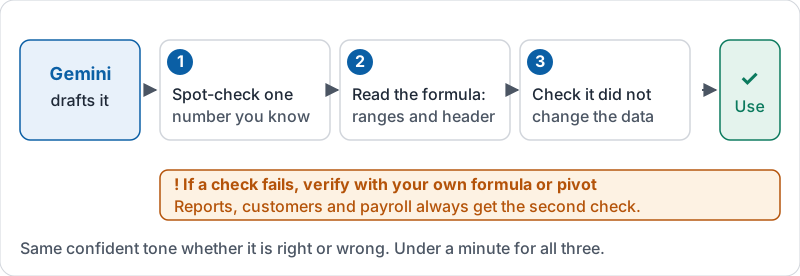
Gemini’s answers come back in the same confident tone whether they are right or wrong. Three checks take under a minute:
- Spot-check one number you already know. If it says South totalled 1,400 and your SUMIF says 1,400, good. If not, ask why before using either.
- Read the formula it wrote. Do the ranges cover the right columns and rows? Does it include the header row? Is a criterion spelled exactly as the data spells it?
- Check it did not change the data. Summaries and formulas should go in a new place. If it offers to insert something, look at where.
For anything that goes in a report, to a customer, or into payroll, verify with a formula or pivot table you understand.
The three checks as a routine.
Confidential data
Gemini in Workspace works inside your organization’s account and its data handling follows your company’s Workspace settings. That is different from pasting a customer list into a public chatbot. Still, follow your company’s policy on what can be analysed with AI tools, and never paste data from a work sheet into a personal AI account.
Try it now
Open a clean sheet and ask Gemini to write a formula that totals one column for one category. Compare its formula with your own SUMIF from lesson 4. Then ask it to summarise the sheet and check one of its claims against a pivot table.
Remember: Gemini drafts, you verify. One known number, one read of the formula, one look at where it put things.
Checking your progress…