Styles, not manual formatting
One change to a style fixes every heading in the document. Manual formatting fixes one line.
Two ways to make text look a certain way
When you want a line to stand out, there are two ways to do it:
- Manual formatting. Select the text, make it bold, bump the size to 14, change the colour. Repeat for every heading.
- Paragraph styles. Tell Docs “this line is a Heading 2”. Docs applies whatever Heading 2 looks like.
Both look identical on screen. They behave completely differently a week later.
Here is the difference side by side.
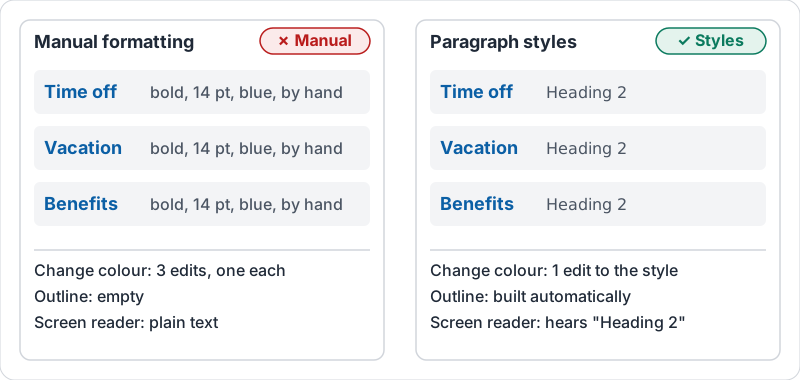
| Manual formatting | Paragraph styles | |
|---|---|---|
| Change every heading’s colour | Find and fix each one by hand | Change the style once |
| Outline and table of contents | Empty | Built automatically |
| Screen reader users | Hear plain text | Hear “Heading 2” and can jump between sections |
| Pasting from another doc | Brings its own mess | Takes on this doc’s look |
The skill: never format a heading by hand. Pick a style, then adjust the style if you want it to look different.
The styles you need
Docs ships with a short list. You rarely need more.
| Style | Use it for |
|---|---|
| Title | The document’s name, once, at the top |
| Subtitle | A one-line description under the title (optional) |
| Heading 1 | Major sections |
| Heading 2 | Topics inside a section |
| Heading 3 | Details inside a topic |
| Normal text | Everything else |
Make the style match what you want
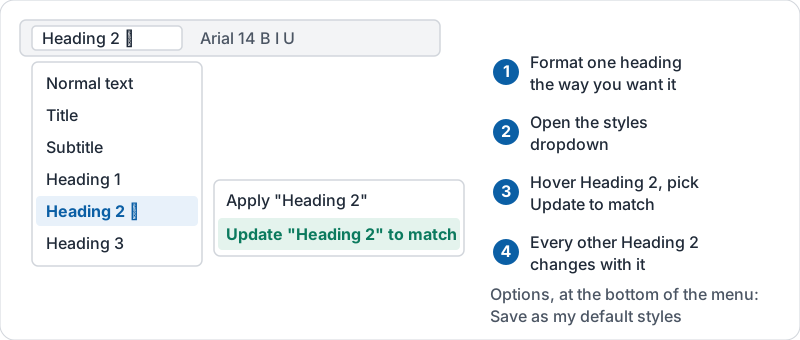
If Heading 2 is the wrong colour, do not change each heading. Format one heading the way you like, then update the style to match it. Every other Heading 2 changes with it, and new ones will follow.
Once a document looks right, you can save its styles as your defaults so every new doc starts the same way.
On desktop the menu looks like this.
Cleaning up pasted text
Text pasted from email or a web page often arrives with its own font, size and background colour. Two quick fixes:
- Paste without formatting so the text takes this document’s styles.
- Select messy text and use Clear formatting to drop it back to Normal text.
Try it now
Open any document you own. Find a heading that was made bold by hand, select it and apply Heading 2 from the styles menu. Then change the colour of that heading and update the Heading 2 style to match. Watch the other headings change.
Remember: if you are about to make the same formatting change in more than one place, stop and change the style instead.
Checking your progress…