Passkeys, MFA and MFA fatigue attacks
A second step stops a stolen password from working. Learn which second steps are strongest, what a passkey is, and why you must never approve a sign-in you did not start.
Why a second step matters
If your password leaks, multi-factor authentication (MFA, also called 2-Step Verification or two-factor) means the thief still cannot get in without something you have: your phone, a security key, or your fingerprint. Turning MFA on for email alone stops the majority of account takeovers.
But not all second steps are equal, and attackers have learned to get around the weaker ones.
CISA’s one-minute case for turning on MFA everywhere it is offered.
Second steps, ranked
| Method | How it works | Weakness |
|---|---|---|
| Passkey or security key | Your device proves it is you with your fingerprint, face or PIN. Tied to the real website. | Cannot be phished. Strongest option. |
| Authenticator app with number matching | The site shows a number; you type it into the prompt on your phone | Strong. You cannot approve by accident. |
| Push notification (Approve / Deny) | A prompt appears on your phone | Vulnerable to “MFA fatigue” (below) |
| Authenticator app code | A six-digit code that changes every 30 seconds | Can be phished in real time by a fake site that relays the code |
| Text message (SMS) code | A code sent to your phone number | Can be intercepted or phished; your number can be hijacked. Still far better than nothing. |
Use the strongest option each account offers. For your main email account, that usually means a passkey.
Passkeys in plain words
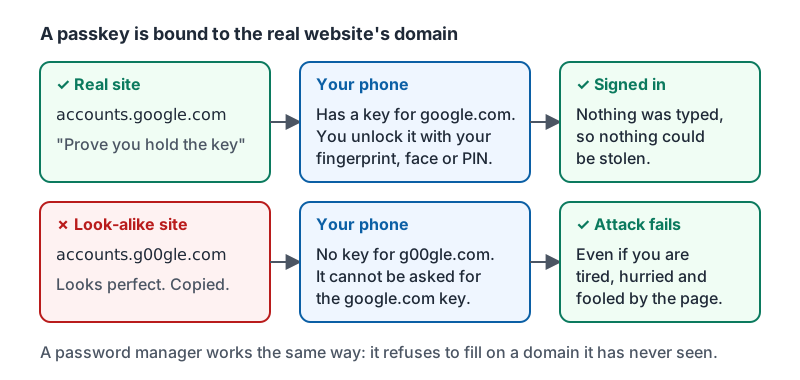
A passkey replaces your password with a key stored on your phone or computer, unlocked by the same fingerprint, face or PIN you already use. When you sign in, the site asks your device to prove it holds the key. You never type anything that could be stolen.
Why this matters for phishing: a passkey is bound to the real website’s domain. A fake g00gle.com login page cannot ask your device for the passkey for google.com. The attack simply does not work, even if the page looks perfect and you are tired and in a hurry.
Things to know:
- Passkeys sync across your devices through your Google, Apple or Microsoft account or your password manager, so a new phone is not a problem.
- You can have a passkey and keep a password as a backup while you get used to it.
- If a site offers “Sign in with a passkey” or “Create a passkey”, say yes. It is faster than a password too.
Why a perfect copy of a login page gets nothing from a passkey.
Google’s three-minute explainer covers how passkeys work and what it feels like to sign in with one.
MFA fatigue: the attack on Approve buttons
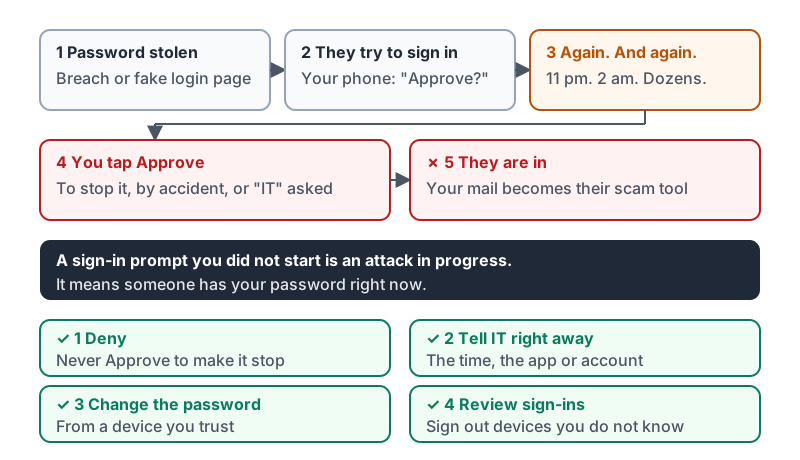
Here is how a modern account takeover goes:
- The attacker already has your password from a breach or a phishing page.
- They try to sign in. Your phone shows “Approve this sign-in?”
- You tap Deny. They try again. And again. At 11 pm. At 2 am. Dozens of prompts.
- Eventually you tap Approve to make it stop, or by accident, or because you assume it is a glitch.
- They are in.
Some add a phone call: “Hi, this is IT, we’re fixing a sync issue, could you approve the prompt we just sent?” Never approve a prompt because someone asked you to.
The rule: a sign-in prompt you did not start is an attack in progress. It means someone has your password right now.
What to do:
- Deny. Never Approve to make it stop.
- Tell IT or your manager right away, with the time and the app or account.
- Change the password for that account from a device you trust, since the prompts prove it has leaked.
- Once the password is changed, review the account’s recent sign-in activity and sign out any devices you do not recognize.
Where your account offers it, switch to number matching or a passkey. Both make fatigue attacks impossible because nothing can be approved by a tired tap.
The attack and the response, side by side.
Recovery options
Set a recovery phone and recovery email on your main accounts, and keep them current. Print or save the backup codes somewhere safe (your password manager is fine). If you lose your phone, recovery options are the difference between a ten-minute fix and losing the account.
Try it now
Open the security settings of your main email account. If a passkey is offered, create one now; it takes under a minute. Then check your recovery phone and email are current, and look at recent sign-in activity for anything you do not recognize.
Remember: passkeys cannot be phished and cannot be approved by accident. A sign-in prompt you did not start means someone has your password: deny, tell someone, change it.
Checking your progress…