Plans and data-privacy settings
Which account you are signed in to decides who can see your chats. Check it before you paste anything from work.
Two questions before your first prompt
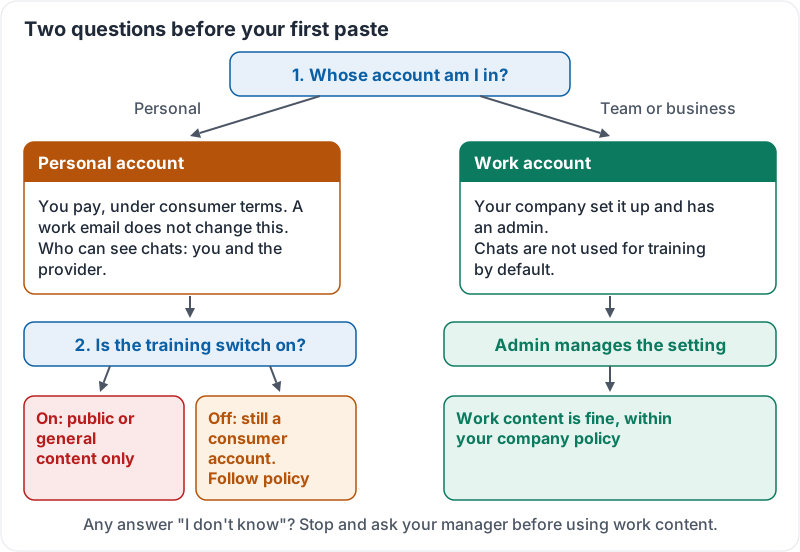
Before you paste a single sentence of work into Claude, answer two questions:
- Whose account am I in? A personal account you made yourself, or a work account your company set up and pays for?
- Can my chats be used to improve the model? Some plans switch this on by default. Others never use your chats for training.
The answers decide what you are allowed to paste. Your company AI policy (lesson 7) is written around them.
Personal plans and work plans
Claude comes in a free tier, paid individual plans, and plans for teams and larger companies. The names and prices change, so the table below describes what matters rather than what each tier is called this month.
| Kind of plan | Who pays | Who can see your chats | Typical rule at a small business |
|---|---|---|---|
| Free or individual, personal email | You | You, plus the provider under its consumer terms | Fine for public or general content. Not for customer or company data unless your policy says so |
| Individual, work email, personal card | You or expensed | You, plus the provider | Still a consumer account. Treat it like the row above |
| Team or business plan | Your company | You and your company admin; chats are not used to train the model by default | The normal place for work content, within policy |
The key point: a work email address does not make it a work account. Only a plan your company set up, with an admin, gives your company control over data.
The same two questions, as a flowchart:
The training setting
On consumer plans there is a setting that controls whether your conversations may be used to improve Claude. If it is on, anything you paste could become training data. If it is off, chats are kept for a shorter period and are not used that way.
On team and business plans this setting is handled by your company admin and chats are not used for training by default.
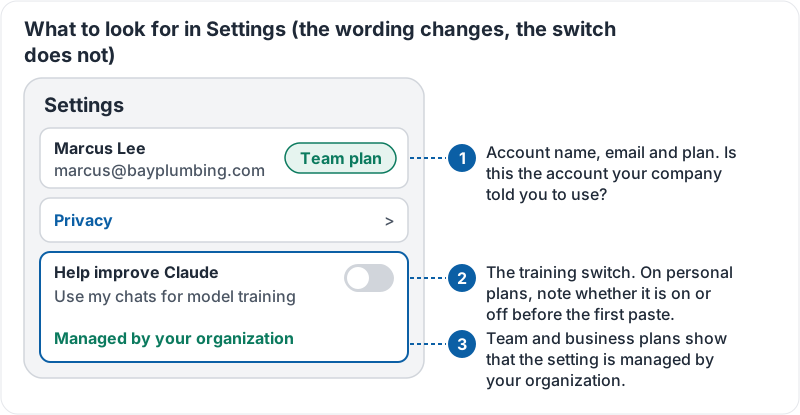
Here is the kind of screen you are looking for, with the three things to note marked:
If Claude is new to you, Anthropic’s short tour of the interface shows where Settings and the other controls live:
Quick self-check
Open Claude right now and look at the account name shown in Settings. Ask yourself:
- Is this the account my company told me to use?
- Is the training setting in the state my company expects?
- If I pasted a customer complaint here, who could read it?
If any answer is “I don’t know”, stop and ask your manager before using work content.
Try it now
Open Settings in Claude on your phone. Write down three things: the plan name shown, the email address, and whether the training switch is on or off. Keep this note; lesson 7 asks you to compare it with your company AI policy.
Remember: the account you are signed in to decides who can see your chats. Check the plan and the training setting once, before the first paste, not after.
Checking your progress…